

Eight photos in, eight transparent WebPs out, 32.3 MB lighter. JPEG, HEIC and a RAW DNG
all in one batch, cut out with BiRefNet on this Mac.
ffmpeg can do nearly anything, as long as you remember the flags. ffmep is the flags, remembered. It uses stock macOS controls and Liquid Glass on macOS 26, so it looks like something Apple could have shipped.
It also does a few things ffmpeg alone makes awkward: photos from an iPhone, WebP in both directions, Live Photos, and cutting the subject out of a picture.
Download the DMG from the latest release, open it, and drag ffmep to your Applications folder. It's signed and notarized, so it opens on a double-click.
Or with Homebrew:
brew install TheFilipcom4607/tap/ffmepEither way you need an Apple silicon Mac running macOS 14 or later.
From a clone of this repo:
scripts/build-ffmpeg.shVERSION=1.0.0 scripts/make-app.shThe first script builds a static arm64 ffmpeg and ffprobe into vendor/. It takes
a while the first time, and re-runs skip whatever already finished. It needs the
Xcode command line tools and brew install cmake meson ninja pkgconf.
The second builds the app, bundles that ffmpeg, signs it and writes
build/ffmep.app and build/ffmep.zip. Use CONFIG=debug for a debug build in
build/debug/. Build with the macOS 26 SDK or newer to get Liquid Glass.
A build of your own isn't notarized, so Gatekeeper stops the first launch: right-click
ffmep.app, choose Open, and it starts normally from then on.
To use the Shortcuts action, the app has to be signed with an Apple developer
certificate, because macOS won't run App Intents from an ad-hoc signed app. A free
Apple ID gives you one: in Xcode, open Settings → Accounts, add your Apple ID, then
Manage Certificates → + → Apple Development. make-app.sh finds that certificate by
itself, or you can name one with SIGN_IDENTITY.
If security find-identity -v -p codesigning still says 0 valid identities, your keychain
is missing the intermediate certificate that signed yours. Install Worldwide Developer
Relations - G3 from Apple's certificate page
(G3, not G6).
- Video to MP4, MOV, MKV, WebM or GIF, as H.264, HEVC, ProRes, VP9 or AV1. H.264, HEVC and ProRes go through VideoToolbox when the Mac has a hardware encoder for them, so they finish in a fraction of the time.
- Audio to MP3, AAC, WAV, FLAC, ALAC or Opus, including pulling the soundtrack out of a video.
- Images to WebP, JPEG, PNG or HEIC. Anything ImageIO can open goes in, RAW DNGs included. JPEG, PNG and HEIC are written by ImageIO directly, WebP by the bundled ffmpeg.
- A file size instead of a quality. Turn on Limit File Size, type 10 MB, and ffmep works out the bitrate that fits. Or skip it and use the slider, with Small, Balanced and High to start from.
- Resize, rotate, flip, change the frame rate, or squeeze out every last byte with maximum compression.
- Presets for the things you do often. It comes with ones for Discord, WhatsApp and email size limits, ProRes for editing, web images, Discord emoji and more, and you can save your own from the inspector.
- Your own file names, like
{name} (web)or{date} {name}. - Shortcuts actions for Convert Images, Convert Videos, Convert Audio and Remove Background, each with its own format, quality, size, metadata and save folder settings, plus Convert Files for your presets. They hand the converted files to the next step. They need a signed build, see Install.
- A queue that keeps moving. Images, audio, hardware video and software video each get their own lane with their own limit, so a slow AV1 encode doesn't hold up a folder of photos.
- Save next to the originals, into a folder, or replace the originals. Replaced files go to the Trash, and only once the new file is safely written.
Photos and videos carry more than pixels: where they were taken, when, the camera and its serial number, sometimes your name. Metadata has three settings:
- Keep everything, including the location and capture date iPhone videos keep in Apple's own tags, which ffmpeg drops unless it's told not to.
- Remove Location takes out GPS and place names, and keeps the rest.
- Remove All takes out all of it.
Whichever you pick, each converted file says what it lost, like Removed location, date and serial number. ffmep can't write metadata into WebP or GIF, so those always lose it, and the file says so instead of leaving you to find out.
The tests convert geotagged photos and iPhone-style videos to every format and check what's left in each file, so a leak shows up as a failing test.
Drop in a Live Photo, the .HEIC and the .mov together, and it shows up as one
row with a Live Photo badge. Export the still, the motion as an MP4, or the motion
as an animated GIF.
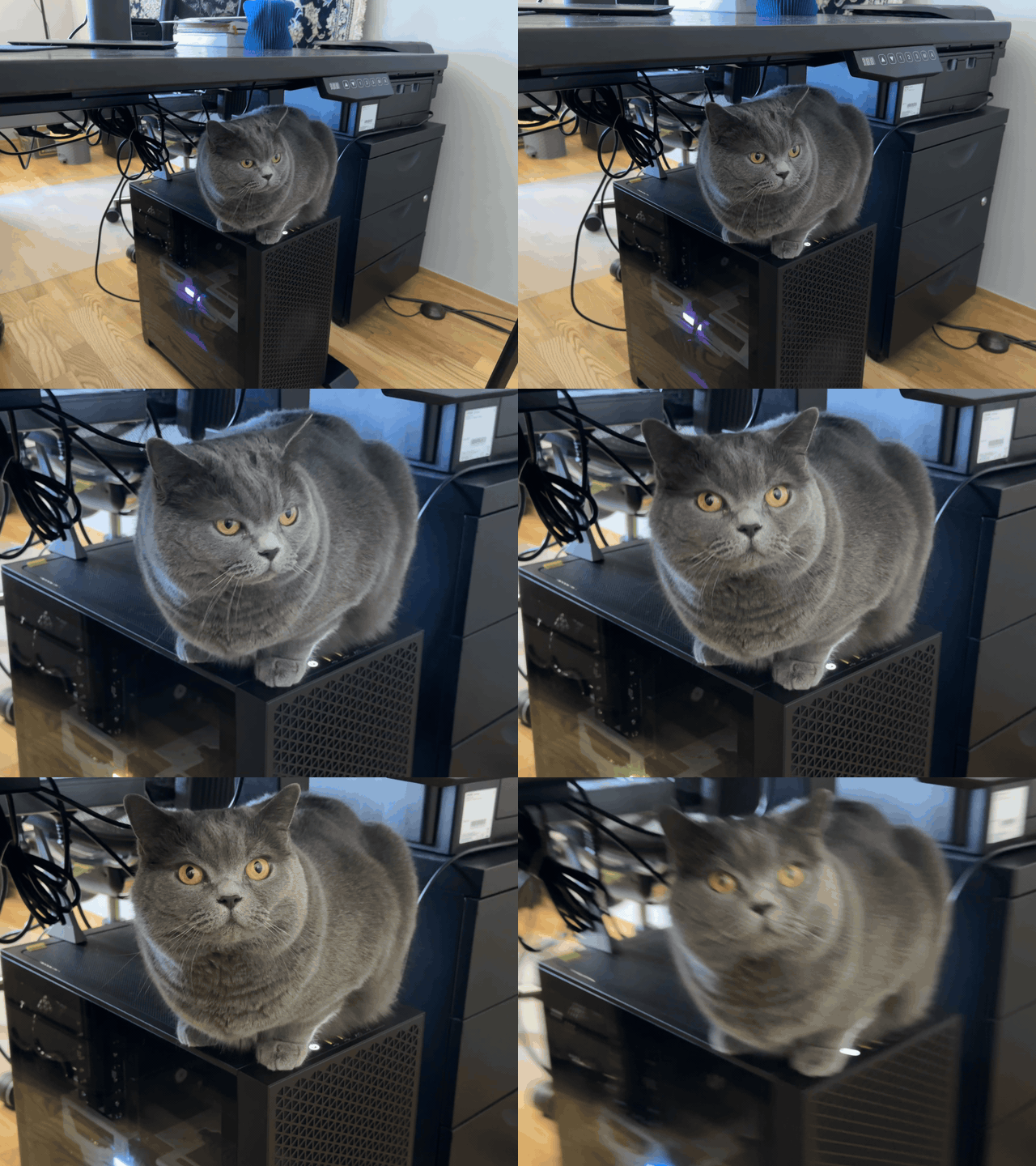
A Live Photo, exported as a GIF at 480p. No trimming, no Photos app, no third-party site.
Set Background to Transparent or White and ffmep cuts the subject out before converting. Formats without transparency, like JPEG, get white instead.
It works straight away with Apple's Vision framework. The first time you use it, ffmep offers to download BiRefNet, a 408 MB Core ML model with much cleaner edges on fur, hair and anything thin. Once it's installed, Model picks between the two for each conversion: BiRefNet for the cleanest edges, or Apple Vision when speed matters more, since Vision is many times faster. Either way it runs on your Mac, and the model can be removed again from Settings.
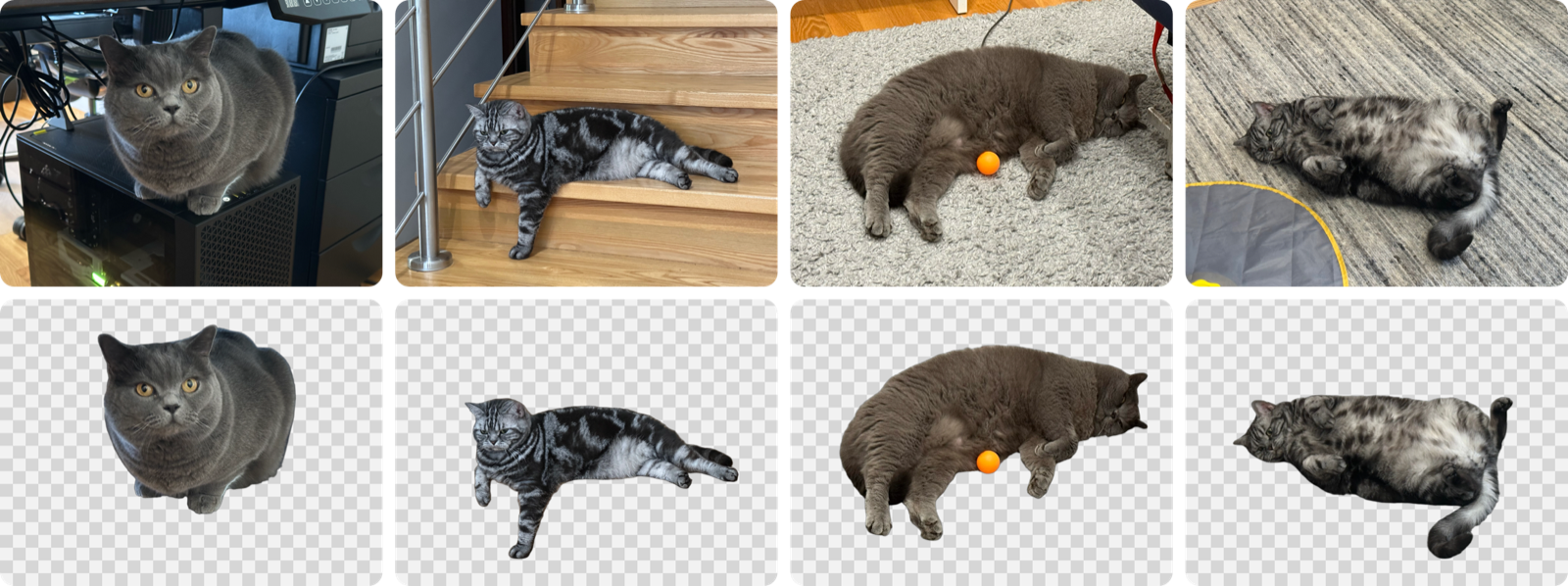
Top: the originals. Bottom: what BiRefNet kept. The railing, the cables and the rug all go,
the whiskers and the ball stay.
Every conversion, and background removal, runs on this Mac. No account, no analytics, and nothing about your files is ever sent anywhere.
ffmep reaches the network in exactly two places, both optional. It downloads the BiRefNet model only after you say yes. And once a day it asks GitHub whether a newer version exists — just that question, carrying nothing but the version you're running. Settings › General › Check Automatically turns it off, and then ffmep makes no network connections at all.
ffmpeg 9.0.1, static, arm64, linking nothing but system libraries. Built with
x264, x265, SVT-AV1, libvpx, Opus, LAME, libwebp and dav1d, plus VideoToolbox and
AudioToolbox. Exact versions are in vendor/BUILDINFO.txt.
Prefer your own? Settings can switch to Homebrew's ffmpeg or any path you like.
| Put in | Get out |
|---|---|
| Video: anything ffmpeg reads, like MOV, MP4, MKV, WebM, AVI or an animated GIF | MP4 (HEVC, H.264), MOV (HEVC, H.264, ProRes), MKV (HEVC, H.264, AV1), WebM (VP9, AV1), GIF, or any audio format |
| Audio: anything ffmpeg reads, like MP3, AAC, WAV, FLAC, ALAC, Opus or OGG | MP3, M4A (AAC), WAV, FLAC, ALAC, Opus |
| Images: anything macOS opens, like HEIC, JPEG, PNG, WebP, TIFF or RAW, plus what ffmpeg decodes | WebP, JPEG, PNG, HEIC, GIF |
That's the whole list. If you need a conversion that isn't on it, or a file ffmep won't open, open an issue.
ffmep is small on purpose. Reach for something else when:
- You're on an Intel Mac, or on macOS 13 or older. ffmep needs Apple silicon and macOS 14.
- You need to edit, not convert. There's no trimming, cropping or joining.
- Your video has subtitles or several audio tracks. Subtitle tracks are dropped. MOV and MKV keep every audio track, but MP4 and WebM keep only the first. HandBrake handles subtitles and tracks well.
- You want to tune the encoder. ffmep gives you a quality slider or a file size. HandBrake has far more settings, and ffmpeg itself has all of them.
- You need a GIF under a set size. GIF has no file size limit yet. A smaller size and frame rate help, but ffmep can't aim for a number.
- Your audio has cover art you want to keep. Converting audio drops it.
- It isn't video, audio or an image. Documents, PDFs and archives are out of scope.
- You want it in another language. It's English only for now.
swift testThe integration tests run real conversions and are skipped unless you point them at a folder of sample files:
FFMEP_FIXTURES=/path/to/fixtures swift test --filter IntegrationTestsThey use the ffmpeg in vendor/ by default, or Homebrew's with FFMEP_FFMPEG=homebrew.
The metadata tests make their own sample files, so they run whenever vendor/ has
an ffmpeg.
make-app.sh also fixes one thing SwiftPM gets wrong for this app. SwiftPM records
the deployment target as the SDK version in the binary, and macOS 26 then runs the
app in legacy appearance mode, without Liquid Glass. The script writes the real SDK
version back in with vtool.
It also makes the Shortcuts action visible. Shortcuts reads a Metadata.appintents
bundle that Xcode normally generates, and SwiftPM doesn't, so the script runs Apple's
appintentsmetadataprocessor on the constant values the compiler writes out.
scripts/release.sh VERSION cuts a release: it builds through make-app.sh, stages the
app next to an /Applications symlink in a DMG, notarizes it with the ffmep-notary
keychain profile, staples the ticket, checks the stapling on both the image and the app
inside it, and prints the sha256 the Homebrew cask needs. It needs a Developer ID
Application certificate and xcrun notarytool store-credentials ffmep-notary.
The BiRefNet conversion scripts live in scripts/birefnet, with
usage notes at the top of convert.py.
GPLv3, see LICENSE. The bundled ffmpeg is built with --enable-gpl and
--enable-version3, so it is GPLv3 too. Its license files are in
vendor/licenses.